
STL vs GLB vs 3MF: geometry, color, and printing data
Compare STL, GLB, and 3MF by what they store, from triangle geometry and visual materials to additive manufacturing metadata.
Written by
3D Print Timelapse Team
The 3D Print Timelapse team writes practical guides about 3D printing files, timelapse workflows, and clearly labeled rendered print animations.
STL is the simplest choice for uncolored mesh geometry. GLB is the better choice for a visual scene or model with embedded colors, materials, and textures. 3MF is designed to package additive manufacturing data, including defined units and extensible material information. These formats overlap, but they are not interchangeable.
For 3D Print Timelapse's current public preview, the practical answer is narrower: upload an STL for a single-color model, a self-contained GLB for a model whose visual appearance matters, or text G-code when you want to inspect extrusion paths. 3D Print Timelapse does not currently import 3MF.
A useful comparison at a glance
| Capability | STL | GLB | 3MF |
|---|---|---|---|
| Triangle mesh geometry | Yes | Yes | Yes |
| Defined measurement units | No standard declaration | Uses meters as its coordinate unit | Yes, declared in the model |
| Portable color and materials | No reliable standard system | Yes, for visual rendering | Yes, through core properties and extensions |
| Textures | No standard support | Yes | Available through the Materials and Properties extension |
| Scene hierarchy and transforms | No | Yes | Components and transforms are supported |
| Additive manufacturing focus | Basic geometry exchange | Runtime 3D display | Yes |
| Slicer toolpaths by default | No | No | Not by default, though a Slice extension exists |
| 3D Print Timelapse public preview | Supported as a single-color model | Supported when required resources are embedded | Not currently supported |
What we checked with the same geometry
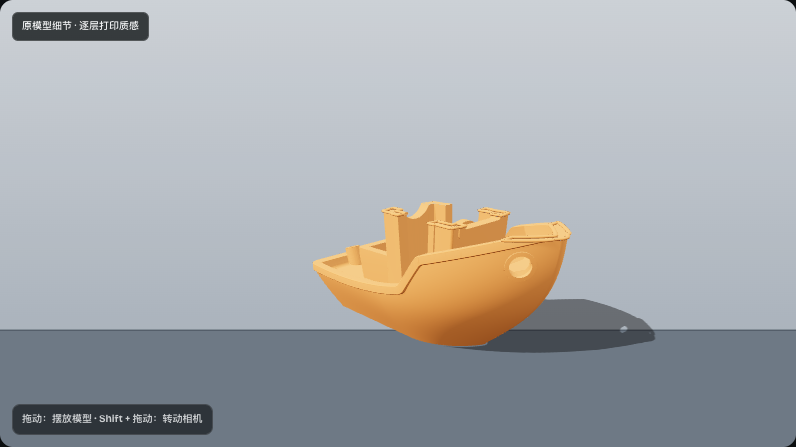
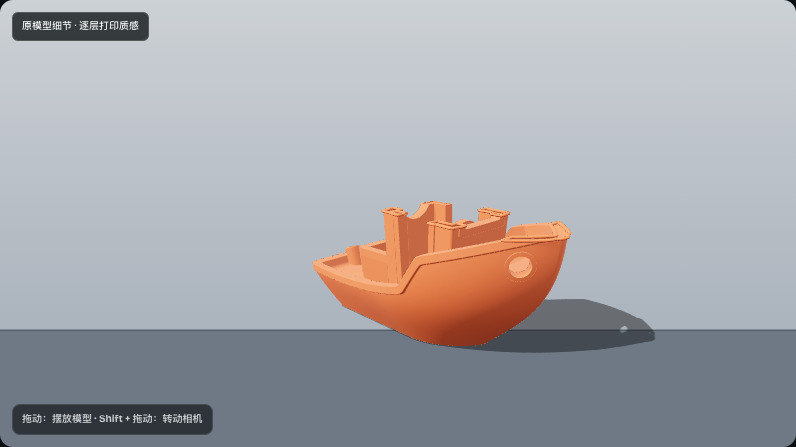
Before publication, we compared the official CC0 3DBenchy STL with a GLB derived from that exact mesh. The conversion kept the same 225,706 triangles and Float32 coordinates, then added one orange preview material. This isolates the format difference from changes to the model itself.
The STL supplies the geometry, while the viewer supplies its display color.
The GLB carries a material with the same mesh. It still does not contain a printer profile or prove how a physical print will be colored.
We checked the 3MF statements below against the 3MF Consortium's core and extension specifications. The current editor does not import 3MF, so this article does not present a renamed file or a fabricated 3MF screenshot as an application test.
STL: a triangle surface with very little context
STL represents a model as triangular facets. It can be written as readable ASCII or compact binary data. The format became common in additive manufacturing because the receiving application gets a straightforward surface mesh without needing to understand the source CAD system.
Its simplicity is also its main limitation. The Library of Congress description of the STL format family explains that STL does not define a standard measurement unit. It also notes incompatible attempts to add color to binary STL. Those attempts are not a dependable material exchange system.
An STL does not normally tell an application:
- whether numeric coordinates were intended as millimeters or inches;
- which texture image belongs on a surface;
- which physical material or filament should be used;
- how the object should be sliced;
- which printer profile should prepare the job.
3D Print Timelapse reads STL dimensions as millimeters. Check the size before composing a scene, especially when the model came from software that exported unitless coordinates. 3D Print Timelapse also assigns an STL one display color because it cannot recover portable surface materials that the format does not reliably carry.
Use STL when geometry is all you need and the receiving workflow already knows how to handle scale and appearance. It remains a practical exchange format for slicers, but it is not a complete manufacturing job or a rich visual asset.
GLB: a delivery format for rendered 3D assets
GLB is the binary container form of glTF. The Khronos glTF 2.0 specification defines glTF as a runtime asset delivery format. It can describe meshes, nodes, transformations, materials, cameras, and animations, with binary buffers and images supplying geometry and textures.
This is a different goal from STL. STL focuses on the surface triangles. GLB can carry the information a renderer needs to reproduce a model's intended visual appearance, including physically based material parameters, vertex colors, and texture images.
GLB is often called a single-file format, but that phrase needs a qualification. The Khronos specification allows a GLB to reference external resources. A file can therefore end in .glb and still depend on an image or buffer stored elsewhere. For a portable upload, export a self-contained GLB with all required buffers and images embedded, then test the exported file away from the original project folder.
In 3D Print Timelapse, an embedded-resource GLB is the best of these three formats when you want the visual workflow to retain model colors and materials. It can support a layered reveal that preserves more of the finished surface appearance than an STL or a standalone G-code path view.
That does not make GLB a printing instruction file. Its materials describe rendering appearance, not a guaranteed mapping to physical filament, nozzle, temperature, or tool number. Even when a red region appears correctly on screen, no universal rule says which printer should make it red or how a multi-material system should produce it.
Use GLB when the goal is a visually faithful model in a scene. Convert or export it separately for manufacturing according to the requirements of your slicer and printer.
3MF: a package designed for additive manufacturing
3MF was designed specifically to move richer additive manufacturing data between applications. The 3MF Core Specification defines a package containing model resources, objects, meshes, components, transforms, build items, thumbnails, and metadata. Unlike STL, it includes a declared unit for the model coordinate space.
The format is also extensible. The 3MF Consortium specification suite publishes separate extensions for materials and properties, production information, slices, beam lattices, and other use cases. This lets a 3MF package describe far more than a bare triangle surface when both the exporting and importing applications support the same features.
Not every 3MF file contains colors, textures, sliced layers, or printer settings. Core support does not guarantee support for every extension. Always check the compatibility of the two programs involved instead of assuming that every detail survives because both display the 3MF extension.
3MF is therefore useful when the workflow needs defined units, structured components, additive manufacturing metadata, or richer material descriptions. It is not automatically the best source for a web renderer, and it is not identical to G-code. A model package describes assets and manufacturing intent; G-code records commands prepared for a particular printing workflow.
3D Print Timelapse does not currently accept 3MF. Do not rename a .3mf file to .stl or .glb. A new extension does not change the data inside. Export a supported format from the application that created the package, and inspect the result before upload.
Where text G-code fits
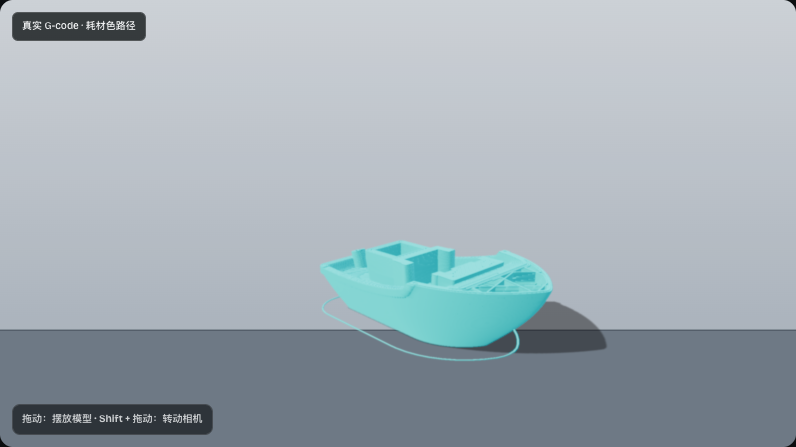
G-code sits at a later stage than the three model formats. A slicer reads geometry, applies a printer and material profile, divides the object into layers, and writes movements and extrusion commands. The official Marlin documentation for G0 and G1 describes common fields such as X, Y, Z, E, and F. Other firmwares can support a different command set.
That difference in stage explains why G-code is not a substitute for GLB materials or 3MF project data. A standalone text file can show the ordered extrusion path, but it does not preserve a shaded source model for 3D Print Timelapse to render. Uploaded G-code cannot be paired with a separate STL or GLB inside the current editor.
If you are deciding between a model and an already sliced file, see G-code vs STL: which file do you need for a printing video?. The key decision is whether the video should show the model's appearance or the slicer's actual path.
Which format should you export?
Choose the smallest format that preserves the information your next tool actually needs.
Choose STL for plain geometry
STL is appropriate when:
- a slicer or model viewer needs only the surface mesh;
- one display color is acceptable;
- you can verify and correct the assumed units;
- textures, scene hierarchy, and manufacturing metadata are unnecessary.
Before export, check that the mesh is closed, the surface normals are sensible, and the intended size is known. Those checks make the handoff more predictable even though they do not add printer instructions.
Choose a self-contained GLB for visual appearance
GLB is appropriate when:
- model colors or textures should appear in the video;
- multiple mesh parts and transforms should remain organized;
- the destination is a renderer or interactive 3D experience;
- printer instructions are not the purpose of the file.
Embed all required buffers and textures. After export, move the GLB to a clean folder and open it there. If it still looks correct, it is less likely to depend on a forgotten external asset.
Choose 3MF for a compatible manufacturing handoff
3MF is appropriate when:
- the receiving software explicitly supports the required 3MF features;
- units and component structure must travel with the model;
- supported material or production metadata matters;
- you want to preserve a richer additive manufacturing package than STL allows.
Confirm extension support on both sides. A sender that writes a feature and a receiver that ignores it can produce a technically openable file with missing meaning.
For 3D Print Timelapse, export STL or embedded-resource GLB instead. 3MF import is not available today.
What the current 3D Print Timelapse preview does and does not do
The public preview supports model inspection, scene composition, and PNG frame saving. It accepts STL, embedded-resource GLB, and text G-code. Automatic slicing, accounts, and MP4 export are not open to the public yet.
3D Print Timelapse does not turn visual materials into printer material assignments. It also does not attach an uploaded G-code file to a separate model. If a model is converted into paths in an environment where automatic slicing is enabled, the generated G-code is for the visualization workflow. It is not validated for your physical printer and should not be treated as ready-to-print machine code.
Preserve meaning, not just an extension
The best file is the one that keeps the details your next step needs without implying details it does not contain. For a 3D Print Timelapse visual, that usually means STL for shape or an embedded-resource GLB for appearance. For a slicer or manufacturing handoff, follow that application's documented STL or 3MF support. For an exact path animation, use text G-code created by a slicer you trust.
Open the 3D Print Timelapse preview editor to inspect a supported file and compose a PNG frame. If you are choosing between geometry and a sliced path, read G-code vs STL: which file do you need for a printing video?.
Related posts
Insights, updates and stories from our team